

24 September
Website design
Best WordPress Speed Optimization Plugins for 2026
- Mohamed ElSaeed
- 2 Comments
Why WordPress Website Speed Matters
A visually impressive website can still lose visitors if it takes too long to load. Whether someone finds your business from Cairo, Riyadh, Jeddah, Dubai, or anywhere else, users expect pages to become usable quickly—especially on mobile devices.
The best WordPress speed optimization plugins can help reduce unnecessary page weight, improve caching, optimize images, reduce render-blocking resources, and make your website feel significantly faster. But plugins are only one part of the performance stack.
Hosting quality, server location, theme architecture, plugins, images, fonts, JavaScript, database efficiency, and CDN configuration all contribute to the final experience. If your hosting environment is already limiting your site, start with my WordPress hosting guide for Egypt and Saudi Arabia before trying to fix everything with optimization plugins.
Google’s Core Web Vitals currently focus on loading performance through LCP, responsiveness through INP, and visual stability through CLS. Google recommends aiming for LCP within 2.5 seconds, INP below 200 ms, and CLS below 0.1 at the 75th percentile of page loads.

In this guide, we’ll look at six popular tools for improving WordPress performance, what each one actually does, and how to choose the right setup without creating unnecessary conflicts.
Why Is Website Speed Important for Your Business?
Website Speed and SEO
Website performance is part of the broader page experience that search engines consider, but speed should not be treated as a magic ranking shortcut.
Google recommends achieving good Core Web Vitals because they reflect real user experience, while also making clear that excellent scores alone do not guarantee top search rankings.
A technically strong WordPress website gives search engines and visitors a better foundation through:
- Faster loading
- Better responsiveness
- Greater visual stability
- Improved mobile usability
- More efficient crawling
- Fewer frustrating delays
You can test individual URLs using Google PageSpeed Insights and use the results to identify specific bottlenecks rather than installing plugins blindly.
Website Speed, User Experience, and Conversions
Performance is also a UX issue.
A slow hero section, delayed mobile menu, unresponsive button, or layout that shifts while loading can make an otherwise professional website feel unreliable.
This becomes especially important for ecommerce. Customers interact with product galleries, filtering, cart functions, checkout forms, payment gateways, and tracking scripts, all of which can add performance overhead.
If you are working on ecommerce, my guide to building a WooCommerce store from scratch covers the wider architecture around hosting, products, payments, shipping, performance, and launch.
What Makes a WordPress Website Slow?
Before choosing a performance plugin, identify what is actually causing the slowdown.
Common causes include:
- Large, unoptimized images
- Excessive or poorly coded plugins
- Heavy themes
- Inefficient hosting
- No page caching
- Too many third-party scripts
- Unused CSS and JavaScript
- Large DOM structures
- External fonts
- Excessive animations
- Database bloat
- Too many tracking scripts
- Poorly configured page builders
- Loading assets on pages where they are not needed
Caching, for example, stores a reusable copy of content so future requests can be delivered faster instead of rebuilding everything from scratch every time.

A performance plugin can improve several of these areas, but no single plugin can compensate for poor hosting, oversized media, inefficient code, and unnecessary third-party services all at once.
Best WordPress Speed Optimization Plugins
1. WP Rocket — A Powerful Premium WordPress Performance Plugin
WP Rocket is one of the best-known premium WordPress performance plugins and is designed to handle several common optimization tasks from one interface.
Its caching system serves cached page content instead of requiring WordPress to execute the full PHP request for every eligible page visit.
More advanced features include Remove Unused CSS, JavaScript deferral and delay, media optimization, preload, font optimization, and CDN integration.
WP Rocket currently recommends Remove Unused CSS as its preferred CSS optimization method. The feature generates CSS containing only the rules required for each processed page.
Its Delay JavaScript Execution feature can postpone JavaScript until user interaction, which can reduce JavaScript execution time and main-thread work, although interactive functionality should always be tested carefully after enabling it.
Key WP Rocket Features
- Page caching
- Cache preloading
- CSS minification
- Remove Unused CSS
- Deferred JavaScript
- Delayed JavaScript execution
- Image and iframe lazy loading
- Critical-image optimization
- Font optimization
- Database cleanup tools
- CDN integration
WP Rocket also includes specific functionality aimed at improving LCP, including identifying critical images, prioritizing them, and preventing important viewport imagery from being incorrectly lazy-loaded.
You can review the official WP Rocket optimization documentation before enabling aggressive settings.
Who Is WP Rocket Best For?
It is particularly useful for website owners and developers who want a broad optimization toolkit without manually configuring several separate performance plugins.
It can work well for:
- Business websites
- Portfolio websites
- Blogs
- WooCommerce stores
- Elementor websites
- Content-heavy WordPress websites
Pricing: Premium. Current prices vary by location and license tier, so check the official site before purchasing.
2. LiteSpeed Cache — Excellent When Your Hosting Supports LiteSpeed
LiteSpeed Cache is one of the strongest options when your website runs on infrastructure that supports LiteSpeed server-side caching.
An important distinction is that the WordPress plugin’s general optimization features can be used on different web servers, but its exclusive server-level cache functionality requires LiteSpeed Web Server, OpenLiteSpeed with the appropriate cache module, a compatible LiteSpeed environment, or QUIC.cloud CDN.

Key LiteSpeed Cache Features
- Server-level page caching on compatible infrastructure
- CSS and JavaScript optimization
- Unique CSS through QUIC.cloud
- Critical CSS generation
- Lazy loading
- Viewport Image detection
- Image optimization
- WebP support
- Database optimization
- Browser caching
- CDN integration
- QUIC.cloud online services
For example, LiteSpeed’s Viewport Images service detects images visible above the fold and excludes them from lazy loading, allowing important initial imagery to load with higher priority.
LiteSpeed also provides UCSS functionality through QUIC.cloud to create page-specific CSS containing only required styles. However, LiteSpeed itself warns that aggressive presets can introduce CSS or JavaScript conflicts, particularly on websites with complicated themes or many plugins.
This is why I recommend configuring LiteSpeed feature by feature rather than switching every optimization setting on at once.
Who Is LiteSpeed Cache Best For?
It is a particularly strong choice for:
- Sites running on LiteSpeed hosting
- WooCommerce websites
- Blogs
- Service websites
- Elementor websites
- Users looking for a powerful free caching solution
Pricing: The WordPress plugin is free. Some QUIC.cloud usage or advanced cloud services may involve quotas or charges depending on the service.
You can review the official LiteSpeed Cache documentation for the current configuration options.
3. Smush — Focused on Image Optimization
Images are often one of the largest contributors to page weight, particularly on:
- Portfolio websites
- Real estate websites
- Ecommerce stores
- Travel websites
- Photography websites
- Product catalogs
Smush focuses specifically on media optimization.
Its current feature set includes image compression, bulk optimization, lazy loading, image resizing, and next-generation formats such as WebP and AVIF depending on the selected features or plan.
Key Smush Features
- Automatic image compression
- Bulk image optimization
- Lossy and lossless compression options
- Lazy loading
- WebP and AVIF support
- Image resizing
- Missing image dimension optimization
- Image CDN options in Pro
- Critical image preloading options
One important rule: do not enable multiple lazy-loading systems for the same images.
Smush’s own documentation warns that its Lazy Load feature may conflict when lazy loading is already being handled by another active plugin.
So if WP Rocket or LiteSpeed Cache already manages image lazy loading, avoid duplicating the same function in Smush.
Who Is Smush Best For?
Smush is particularly useful when image weight is one of the main causes of poor performance.
It can be combined with a separate caching solution, but overlapping features should be disabled.
Pricing: Free version available, with additional Pro features.
You can check the official Smush plugin page for its current feature set.

4. Autoptimize — Flexible Front-End Asset Optimization
Autoptimize is primarily focused on front-end optimization.
It can optimize HTML, CSS, and JavaScript, including aggregation and minification, while also offering functionality around critical CSS, asynchronous loading, fonts, images, and other front-end assets.
Key Autoptimize Features
- CSS minification
- JavaScript minification
- HTML minification
- CSS and JS aggregation
- Critical CSS options
- JavaScript deferral
- Google Fonts optimization
- Image optimization options
- WebP and AVIF support
- Emoji removal
Autoptimize can be useful when you already have a caching system but need more control over front-end assets.
For example, a hosting platform may already provide server-level caching while Autoptimize handles CSS and JavaScript.
Important Warning
Do not duplicate the same optimization across several plugins.
If your caching plugin is already:
- Minifying JavaScript
- Delaying JavaScript
- Combining CSS
- Optimizing fonts
then enabling equivalent Autoptimize features may create conflicts or make troubleshooting unnecessarily difficult.
Start with one optimization layer, measure the result, and only add another tool when you can identify a clear reason for doing so.
Pricing: Free core plugin, with optional premium services/features.
You can review the Autoptimize plugin listing on WordPress.org.
5. Cloudflare — CDN, Performance, and Security at the Network Edge
Cloudflare is not primarily a WordPress performance plugin.
It is a network platform that can sit between your hosting server and your visitors.
A CDN stores copies of appropriate website resources closer to users geographically, reducing the distance that content needs to travel. Cloudflare describes a CDN as a distributed network of servers designed to cache and deliver web content closer to end users.
That can be particularly useful if your origin server is in Europe while visitors are distributed across Egypt, Saudi Arabia, the UAE, and other regions.
What Cloudflare Can Provide
- CDN delivery
- Edge caching
- Reduced origin requests
- DDoS mitigation
- DNS
- SSL/TLS functionality
- Brotli, Gzip, and Zstandard compression support
- Security functionality
- Performance optimization features
Cloudflare’s current documentation confirms support for Brotli alongside other compression formats and automated DDoS mitigation on its network.
You can learn more through Cloudflare’s official CDN guide.
Cloudflare Does Not Replace Good Hosting
A CDN can reduce latency and origin load, but it does not replace the need for an appropriate hosting environment.
If the origin server is slow, overloaded, or badly configured, a CDN can only solve part of the problem.
That is why I treat hosting and CDN configuration as complementary layers rather than competing alternatives.
6. WP-Optimize — Database Cleanup and Additional Performance Tools
As a WordPress website grows, its database can accumulate data such as:
- Post revisions
- Auto drafts
- Trashed posts
- Spam comments
- Transients
- Old metadata
- Plugin-generated data
WP-Optimize provides database cleanup functionality alongside caching, image compression, and minification features.
Key WP-Optimize Features
- Database table optimization
- Post revision cleanup
- Auto-draft cleanup
- Spam and trashed-comment cleanup
- Scheduled cleanup
- Page caching
- Image compression
- CSS/JavaScript/HTML minification
- Cache preloading
If you already use WP Rocket or LiteSpeed Cache, I would generally avoid enabling WP-Optimize’s page caching at the same time.
WP-Optimize’s own documentation states that its page cache should not be used alongside another WordPress page caching plugin because both need to control WordPress’s advanced-cache.php mechanism.
However, you can still use WP-Optimize selectively for database maintenance while leaving its caching functionality disabled.
Always Back Up Before Database Cleanup
Database optimization can permanently remove revisions, drafts, and other records.
Make a full backup before aggressive cleanup, particularly on WooCommerce stores, LMS platforms, membership websites, and production business sites.
How to Improve Elementor Performance Without Breaking Your Design
Elementor gives designers extensive control, but complex layouts can increase the number of elements, scripts, styles, images, and interactions that a page needs to process.
Elementor itself currently provides several built-in performance features, including:
- Optimized Image Loading
- Optimized Gutenberg Loading
- Lazy Load Background Images
- Inline Font Icons
- Element Caching
- Optimized Control Loading
The most important rule is not to enable overlapping functionality without understanding which tool is responsible for each optimization.
For example, if LiteSpeed Cache handles image lazy loading, you may not need another image lazy-loading system doing the same job.
If a CSS optimization causes your header, sticky element, off-canvas menu, popup, or animation to behave incorrectly, do not simply accept the broken design because your PageSpeed score increased.
Performance optimization should improve the website without damaging usability.
Elementor also recommends reducing unnecessary plugins, optimizing images, evaluating hosting quality, and using caching/CDN solutions where appropriate.
If you want to see examples of WordPress, WooCommerce, LMS, and other websites I have worked on, you can explore my WordPress project portfolio.
How to Choose the Right WordPress Performance Plugin

There is no universal plugin stack that is ideal for every website.
A practical starting point looks like this:
| Your Situation | Recommended Starting Point |
|---|---|
| LiteSpeed server | LiteSpeed Cache |
| Want a premium all-in-one optimization plugin | WP Rocket |
| Image-heavy website | Smush + one caching solution |
| Need front-end CSS/JS optimization | Autoptimize where appropriate |
| International audience | Cloudflare CDN |
| Old database with years of revisions/transients | WP-Optimize database tools |
| Elementor website | WP Rocket or LiteSpeed + careful Elementor configuration |
| WooCommerce | One caching solution + CDN + optimized media |
Never Run Multiple Page Caching Plugins Together
This is one of the most important rules in WordPress performance optimization.
Avoid configurations such as:
WP Rocket + LiteSpeed Cache page caching + WP-Optimize page caching
all operating simultaneously.
You can sometimes combine plugins when they have clearly separated responsibilities, but overlapping caching and optimization engines make troubleshooting much harder.
Practical WordPress Speed Optimization Tips
1. Measure Before You Optimize
Run a baseline before changing anything.
Use:
- Google PageSpeed Insights
- GTmetrix
- Chrome DevTools
- Search Console Core Web Vitals
Record your:
- LCP
- CLS
- INP where field data is available
- TBT in lab tests
- TTFB
- Page weight
- Number of requests
Then compare after each significant optimization.
2. Change One Group of Settings at a Time
Do not enable 15 optimization options and then try to understand which one broke the website.
For example:
- Configure caching.
- Test.
- Configure CSS.
- Test.
- Configure JavaScript.
- Test.
- Configure media.
- Test.
This approach makes conflicts dramatically easier to identify.
3. Test the Actual Website, Not Only the Score
After every optimization, check:
- Desktop menu
- Mobile menu
- Sticky header
- Sticky elements
- Off-canvas panels
- Popups
- Forms
- Sliders
- Animations
- WooCommerce cart
- Checkout
- User account pages
- Language switchers
A PageSpeed score of 100 is useless if the menu does not open.
4. Optimize Images Before Uploading Them
Do not upload a 5000-pixel image just because WordPress can resize it.
Use the correct dimensions, compress the file, and consider WebP or AVIF where appropriate.
For image-heavy ecommerce and portfolio projects, this can make a substantial difference to initial page weight.
5. Fix Hosting Problems Before Adding More Plugins
A performance plugin cannot manufacture CPU, memory, PHP workers, or database resources that your hosting plan does not provide.
If server response remains poor after reasonable optimization, review your infrastructure.
My WordPress hosting guide explains the differences between shared, managed WordPress, VPS, and cloud environments.
6. Reduce Unnecessary Third-Party Scripts
Common examples include:
- Multiple analytics platforms
- Advertising pixels
- Chat widgets
- Social embeds
- External video players
- Review widgets
- Heatmaps
- Font providers
External resources can add additional DNS lookups, network connections, JavaScript execution, and rendering delays.
Only load the tools that provide real business value.
7. Keep WordPress, Plugins, and Themes Updated
Updates frequently include:
- Performance improvements
- Compatibility fixes
- Security patches
- PHP compatibility
- Bug fixes
But always back up production websites before major updates.
Conclusion: The Best WordPress Performance Plugin Depends on Your Website
The best WordPress speed optimization plugins are not simply the plugins with the largest number of settings.
The best choice is the one that solves the actual bottlenecks on your website without introducing instability.
For many websites:
- WP Rocket provides a strong premium optimization package.
- LiteSpeed Cache is particularly powerful on compatible LiteSpeed infrastructure.
- Smush can solve image-heavy performance problems.
- Autoptimize provides flexible CSS, JavaScript, and HTML optimization.
- Cloudflare improves content delivery and adds a network-level performance and security layer.
- WP-Optimize can help maintain and clean the WordPress database.
The most effective setup is usually a combination of:
Good hosting + one caching solution + optimized media + careful CSS/JS optimization + CDN + regular testing
rather than a large collection of plugins all trying to optimize the same thing.
If you’re planning a new website, I also recommend thinking about performance during development rather than waiting until the site is finished. You can review my WordPress development services to see how performance, usability, responsive design, and maintainability fit into the development process.
Need Help Speeding Up Your WordPress Website?
If your WordPress website feels slow, receives poor Core Web Vitals results, or starts breaking when you enable caching and CSS/JavaScript optimization, the correct solution is usually a structured performance audit—not switching on every available setting.
I can help review the website’s hosting, caching, images, CSS, JavaScript, Elementor configuration, plugins, database, CDN, and other performance bottlenecks.
You can contact me through my website or discuss your WordPress performance issue directly on WhatsApp.
You can also learn more about my work as a WordPress developer and UI/UX designer or browse my recent WordPress projects.
Footnotes
- eCommerce Sites Loading in 1 Second vs 4 Seconds — DesignRush ↩
- Your Ecommerce Bounce Rate & Mobile Speed Impact — HyperSpeed ↩
- Elementor Performance: 15 Tips to Speed Up Your Site — PluginTheme.net ↩
- WP Rocket Review — SuperbThemes ↩
- Best WordPress Caching Plugin Comparison — GigaPress ↩
- How to Fix Slow Elementor — GeekChamp ↩



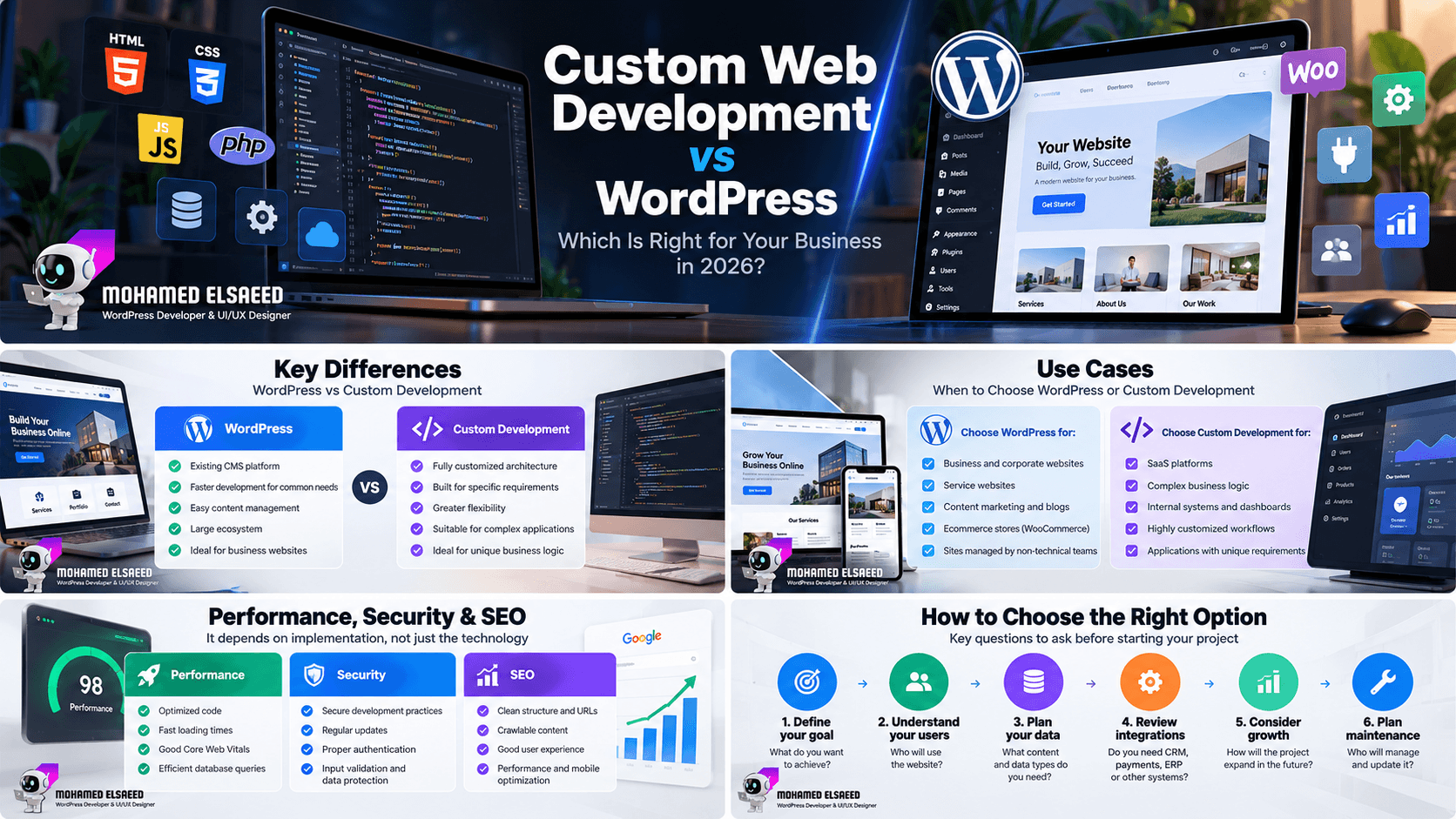


Custom Web Development vs WordPress: 2026 Guide
[…] WordPress-specific performance work, you can also read my guide to the best WordPress speed optimization plugins for 2026 and my WordPress hosting […]
How to Improve Website User Experience (UX): 12 Steps for 2026
[…] WordPress specifically, I explore the practical side of this in my WordPress speed optimization guide, including caching, images, CSS, JavaScript, hosting, and testing real functionality after […]