

24 September
e-commerce
WooCommerce Setup Guide: Build an Online Store Step by Step
- Mohamed ElSaeed
- 1 Comment
Introduction to This WooCommerce Setup Guide
Starting an online store has become much more accessible than it was a few years ago, but building a store that is ready for real customers still requires more than installing an ecommerce plugin and uploading products.
A successful WooCommerce store needs the right hosting environment, a properly configured WordPress installation, clear product organization, secure payment methods, practical shipping rules, responsive design, strong performance, and a solid SEO foundation.
WooCommerce is an open-source ecommerce platform built on WordPress. Its flexibility allows businesses to sell physical products, digital products, services, subscriptions, and other product types while maintaining control over their website, hosting environment, and store data.
In this WooCommerce setup guide, you will learn how to move from a basic WordPress installation to a properly configured ecommerce store, covering products, payments, shipping, design, performance, SEO, sales optimization, and launch preparation.
If you are still at the planning stage and want a broader overview covering ecommerce architecture, themes, regional payments, shipping, and launch strategy, read my complete guide to building a WooCommerce store from scratch.
What Is WooCommerce and Why Is It a Popular Ecommerce Choice?
WooCommerce turns a WordPress website into an ecommerce store while allowing the business owner or developer to maintain extensive control over the store’s structure, content, design, hosting, products, and integrations.
After activation, WooCommerce provides an onboarding process and setup checklist covering core tasks such as adding products, configuring payments, customizing the store, setting taxes, selecting shipping options, and preparing the store for launch.
Key Advantages of WooCommerce
WooCommerce is attractive for many projects because it is:
- Open source
- Highly customizable
- Built around WordPress
- Suitable for physical and digital products
- Extensible through plugins and custom development
- Compatible with many payment providers
- Flexible enough for small and large product catalogs
- Suitable for multilingual and multi-market stores
The platform itself is only the foundation. The final quality of a store still depends on the hosting, design, theme, plugins, configuration, product content, checkout experience, and development decisions made around it.
WooCommerce Compared With Hosted Ecommerce Platforms
One of WooCommerce’s major differences from fully hosted ecommerce platforms is infrastructure control.
With WooCommerce, you choose your own hosting, WordPress configuration, themes, plugins, payment integrations, and development approach. This gives you substantial flexibility, but it also means you or your developer are responsible for maintaining the technical environment.
Hosted platforms may simplify infrastructure management, while WooCommerce generally provides more freedom to customize the underlying website.
Neither model is automatically better for every project. The right decision depends on your budget, required features, technical resources, and long-term ecommerce strategy.
Types of Online Stores You Can Build With WooCommerce
1. Physical Product Store
WooCommerce can be used for products that require inventory management, shipping, and physical delivery.
Examples include:
- Clothing
- Electronics
- Accessories
- Home products
- Cosmetics
- Furniture
2. Digital Product Store
You can also sell downloadable or virtual products such as:
- eBooks
- Templates
- Files
- Educational materials
- Software downloads
- Digital resources
WooCommerce supports downloadable and virtual product configurations directly within its product system.
3. Dropshipping Store
WooCommerce can form the storefront for a dropshipping business where products are sold without maintaining traditional local inventory.
The exact workflow depends on the supplier and the integrations being used, so supplier synchronization, order forwarding, inventory updates, and shipping information should be tested carefully.
4. Service-Based Store
WooCommerce does not have to be limited to physical products.
Businesses can use ecommerce functionality to sell:
- Design services
- Consulting packages
- Development services
- Digital packages
- Bookable services
Additional plugins or custom development may be required depending on the purchasing workflow.
Requirements for Creating a WooCommerce Store
1. Reliable Hosting
WooCommerce usually demands more from a hosting environment than a simple informational website because ecommerce includes dynamic operations such as carts, checkout, customer accounts, orders, inventory, payment callbacks, and database activity.
WooCommerce currently recommends modern WordPress and server software, PHP 8.3+, MySQL 8.0+ or MariaDB 10.6+, HTTPS support, and at least a 256 MB WordPress memory limit for current WooCommerce versions.
If you are unsure which hosting type fits your project, my WordPress hosting guide for Egypt and Saudi Arabia explains shared hosting, managed WordPress, VPS, cloud infrastructure, server location, CDN usage, and scalability.
2. Domain Name
Choose a domain that is:
- Easy to remember
- Easy to type
- Relevant to the business or brand
- Short where reasonably possible
- Suitable for long-term use
Avoid changing the primary store domain after launch unless there is a real business reason, because migrations can affect URLs, tracking, integrations, email configuration, and SEO.
3. WordPress Installation
WordPress provides the CMS foundation on which WooCommerce runs.
Before building the store, configure:
- HTTPS
- Administrator credentials
- Permalinks
- Site language
- Time zone
- Backups
- Security
- Updates
Then WooCommerce can be installed on top of this WordPress environment.
How to Set Up a WooCommerce Store Step by Step
1. Install WordPress
Most modern hosting dashboards provide a WordPress installer.
After installation:
- Confirm that HTTPS is active.
- Set your site title.
- Configure the correct administrator email.
- Choose the appropriate time zone.
- Update WordPress.
- Remove unnecessary default plugins/themes where appropriate.
- Configure your backup strategy.
Do not start building a production ecommerce store on an outdated server environment.
2. Install WooCommerce
From the WordPress dashboard:
Plugins → Add New Plugin → Search for WooCommerce → Install → Activate
After activation, WooCommerce provides an onboarding wizard and setup checklist designed to guide store owners through the most important configuration steps.
3. Configure the Basic Store Settings
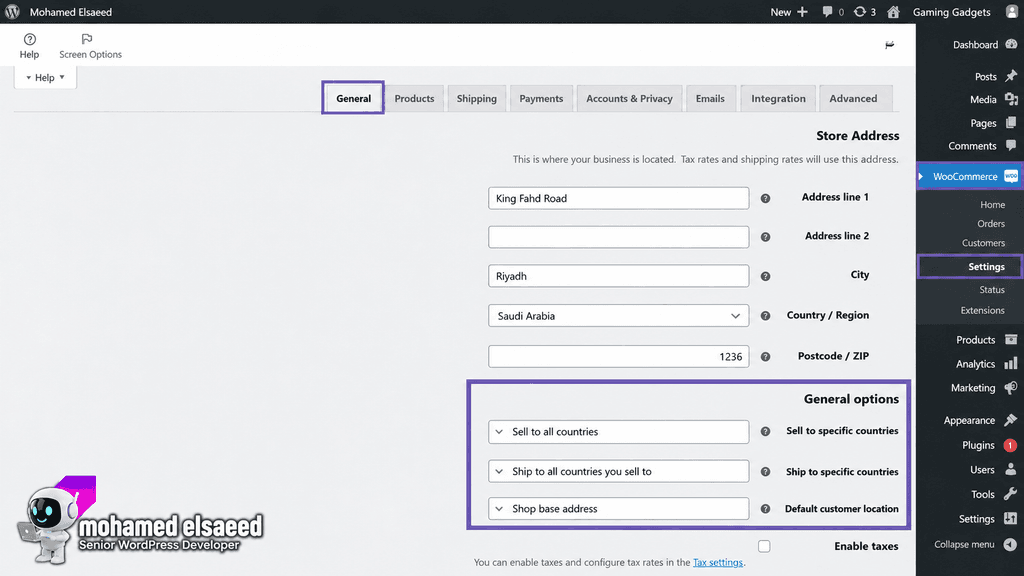
During the initial WooCommerce setup, provide accurate information about:
- Store name
- Business location
- Store email
- Product type
- Industry
- Currency
- Shipping requirements
- Tax requirements
WooCommerce uses this information to personalize parts of the setup process and recommend relevant store configuration options.
Make sure your country and currency are correct before adding large numbers of products.
Changing the entire commercial structure after products, payments, analytics, and marketing systems have already been configured can create unnecessary work.
4. Add Your Products
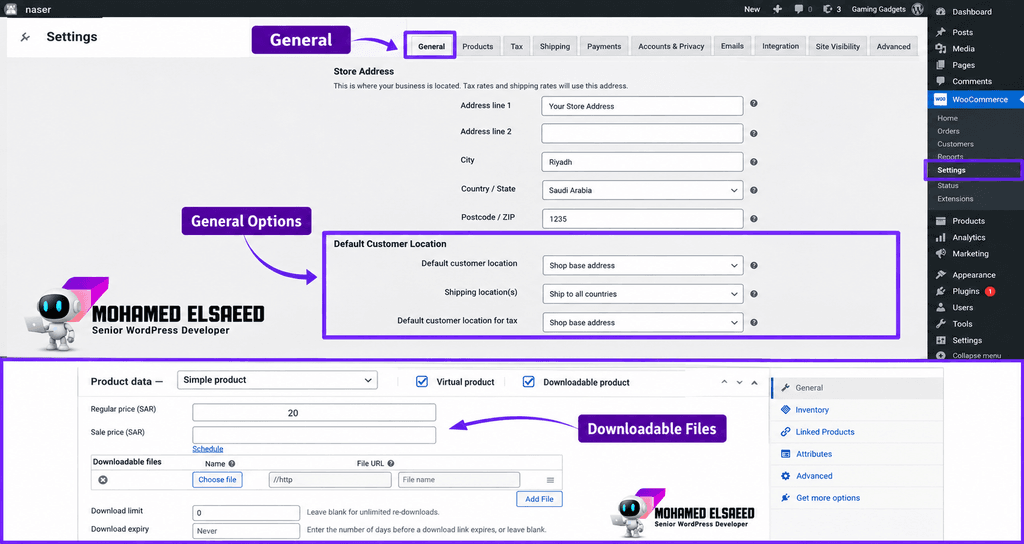
A strong WooCommerce setup starts with well-organized products rather than uploading everything without structure.
WooCommerce supports several product configurations, including simple, variable, grouped, physical, and other product types.
Simple Products
Use a simple product when the customer purchases one version of the item without selecting variations.
Examples:
- Book
- Accessory
- Single digital item
Variable Products
Use a variable product when customers must choose options such as:
- Size
- Color
- Storage capacity
- Material
- Package type
Digital Products
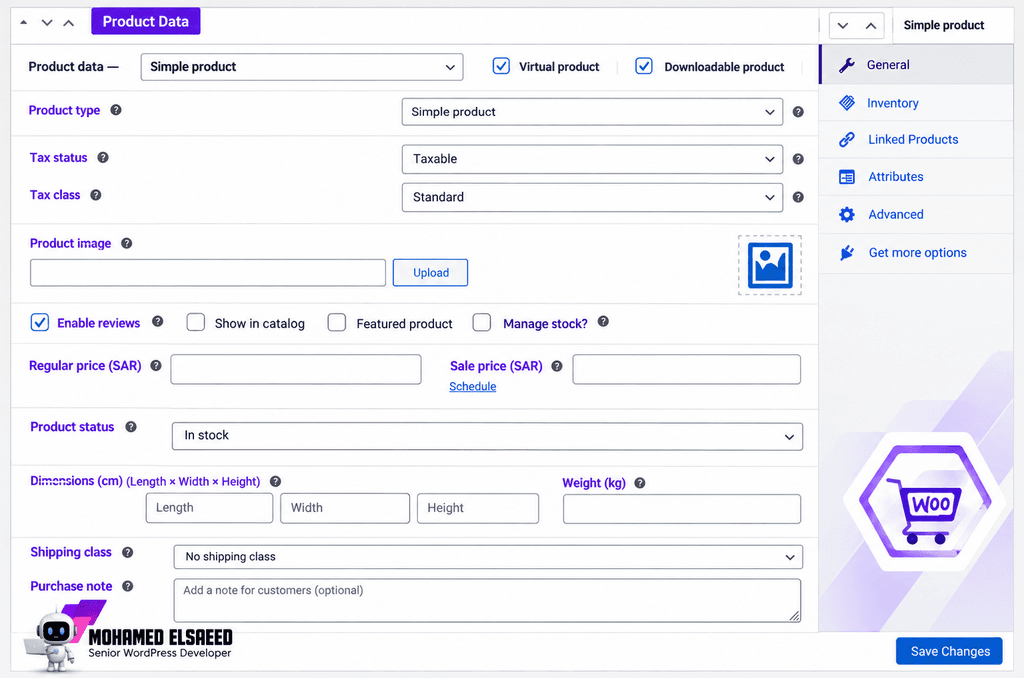
For digital products, you can configure the product as virtual and/or downloadable depending on the selling model.
When creating product pages, include:
- Clear product name
- Unique description
- Price
- Product images
- Gallery
- Relevant category
- Attributes
- Variations
- Stock status
- SKU where useful
- Shipping information
- SEO information
High-quality product information improves both the shopping experience and search visibility.
Avoid copying generic supplier descriptions across your catalog. Write descriptions that actually help the customer understand the product.
5. Configure Payment Methods
Payments are one of the most important parts of the WooCommerce setup process.
WooCommerce allows you to configure payment methods from its Payments settings, while supported gateway availability varies by country and provider.
Depending on your target market, your store might use:
- Credit and debit cards
- Bank transfer
- Cash on delivery
- Digital wallets
- Local payment gateways
- Buy-now-pay-later services
Before launching any gateway, perform real or sandbox tests where supported.
Verify:
- Successful payment
- Failed payment
- Cancelled payment
- Order status changes
- Customer emails
- Refund workflow
- Gateway callback/webhook behavior
Never assume that a gateway works simply because its payment option appears on the checkout page.
6. Configure Shipping
WooCommerce Shipping Zones determine which shipping options and prices are available to customers based on their geographic location.
WooCommerce allows shipping zones to be defined at country, region, or even postal-code level, with shipping methods then assigned to each zone.
You can follow WooCommerce’s official Shipping Zones documentation while configuring your store.
Depending on your business, you might use:
- Flat-rate shipping
- Free shipping
- Local pickup
- Weight-based shipping
- Carrier integrations
- Express delivery
- City-specific shipping rates
Make sure the shipping amount shown during checkout matches your actual fulfillment model.
How to Design a Professional WooCommerce Store
Design has a direct effect on how easily customers can discover products, understand offers, and complete a purchase.
A professional ecommerce interface should prioritize clarity over decoration.
Important Ecommerce Design Elements
Focus on:
- Clear navigation
- Fast product discovery
- Organized categories
- Strong product photography
- Readable typography
- Visible pricing
- Simple variation selection
- Clear calls to action
- Mobile responsiveness
- Easy cart access
- Friction-free checkout
Do not overload every section with animations, banners, promotions, and competing calls to action.
Essential Store Pages
A complete WooCommerce store will normally include:
- Homepage
- Shop
- Product category pages
- Product pages
- Cart
- Checkout
- My Account
- Contact
- Privacy Policy
- Terms and Conditions
- Shipping Policy
- Return/Refund Policy
Depending on your business and country, additional legal or commercial pages may also be required.
Best Types of WooCommerce Plugins to Consider
WooCommerce can be extended significantly, but installing more plugins does not automatically create a better store.
Use plugins when they solve a real requirement.
Payment Plugins
Install only gateways relevant to your target audience and business.
Performance Plugins
Use one primary caching/optimization stack.
Do not run multiple full-page caching systems against the same site.
For a detailed comparison of WP Rocket, LiteSpeed Cache, Cloudflare, image optimization tools, and database optimization, read my guide to the best WordPress speed optimization plugins.
Marketing and Analytics Plugins
Possible requirements include:
- Analytics
- Meta Pixel
- Google Ads tracking
- Merchant Center
- Email marketing
- Conversion tracking
Do not load every marketing script on every page unless it is actually needed.
Order Management Plugins
Additional plugins may help with:
- Shipping labels
- Order exports
- Fulfillment
- Inventory
- Invoice generation
- CRM integrations
Again, choose according to the operational workflow of the business.
How to Improve WooCommerce Store Speed
Speed affects the shopping experience, particularly on product, cart, and checkout pages.
Performance should be addressed systematically rather than installing several optimization plugins and hoping for the best.
Practical WooCommerce Performance Improvements
Optimize Images
Compress product images and deliver appropriately sized files.
Use WebP or AVIF when your stack supports them correctly.
Configure Caching Carefully
Public pages can benefit from caching, but dynamic ecommerce areas such as cart, checkout, and account-specific content must be handled correctly by your caching system.
Choose Appropriate Hosting
Your server needs sufficient resources for the actual workload of your store.
Reduce Unnecessary Plugins
Every plugin should have a purpose.
A poorly developed or unnecessary plugin can add database queries, JavaScript, CSS, or additional processing.
Optimize CSS and JavaScript Carefully
Aggressive optimization can improve synthetic performance scores while breaking:
- Cart functionality
- Variation selection
- Menus
- Popups
- Checkout
- Payment integrations
Always test the complete customer journey after changing CSS or JavaScript optimization.
WooCommerce SEO Optimization
WooCommerce SEO begins with store architecture, not just keywords.
Google’s ecommerce guidance highlights site structure, crawlability, URLs, product data, internal linking, and structured data as important areas for ecommerce websites.
1. Research Relevant Keywords
Identify the search terms potential customers actually use.
Different pages can target different intents:
- Category keywords
- Product keywords
- Commercial queries
- Informational queries
- Brand queries
2. Optimize Product Titles and Descriptions
Each important product should have unique and helpful content.
Include relevant keywords naturally without repeating them unnecessarily.
3. Optimize Images
Use:
- Descriptive file names
- Suitable dimensions
- Compression
- Helpful ALT text
Do not stuff keywords into every image ALT attribute.
4. Build Internal Links
Connect:
- Categories to products
- Products to related products
- Blog articles to categories
- Buying guides to relevant products
This helps customers navigate the store and gives search engines more context about the relationship between pages.
5. Use Product Structured Data
Google can use Product structured data to understand information such as:
- Product name
- Price
- Availability
- Offers
- Shipping
- Returns
- Ratings where valid
For ecommerce pages where customers can purchase products, Google provides specific merchant-listing structured-data guidance.
Review Google’s official Product structured data documentation rather than manually adding arbitrary schema markup.
Strategies to Increase WooCommerce Sales
1. Use Offers and Discounts Strategically
Discounts can support campaigns, clearance, customer acquisition, and seasonal promotions.
But continuous discounts can weaken perceived value.
Use them intentionally.
2. Use Cross-Sells and Related Products
Recommend genuinely relevant products instead of random items.
For example, someone buying a camera may also need:
- Memory card
- Case
- Tripod
- Battery
The recommendation should help the customer rather than simply add clutter.
3. Improve the Product Page
A strong product page should answer common purchase questions:
- What is the product?
- Who is it for?
- What are its main benefits?
- What are the specifications?
- What does it cost?
- Is it available?
- When will it arrive?
- Can it be returned?
Reducing uncertainty can make purchasing decisions easier.
4. Use Email Marketing
Email can support:
- Abandoned cart recovery
- Product launches
- Repeat purchases
- Promotions
- Educational content
- Customer retention
Only send communications to users in a way that complies with the relevant consent and privacy requirements for your market.
Common WooCommerce Mistakes to Avoid
Choosing Weak Hosting
Ecommerce requires a reliable technical foundation.
A low-resource plan may become a bottleneck once traffic, plugins, products, orders, or background tasks increase.
Building an Overcomplicated Design
Customers should not need to learn how your website works.
Keep navigation and purchasing actions clear.
Ignoring SEO
Do not wait until thousands of products have been uploaded before thinking about:
- URLs
- categories
- internal linking
- descriptions
- metadata
- indexing
Planning the structure first is significantly easier.
Ignoring Performance
Performance problems often grow with the store.
Test them before running large advertising campaigns.
Launching Without a Marketing Plan
A completed store does not automatically attract customers.
Consider how customers will discover the business through:
- SEO
- Google Ads
- Meta Ads
- Social media
- Content
- Partnerships
- Repeat customer campaigns
How Much Does It Cost to Create a WooCommerce Store?
There is no single fixed price for creating a WooCommerce store.
The total investment depends on several areas.
Domain
Your domain usually involves an annual registration and renewal cost that varies depending on the extension and registrar.
Hosting
Hosting costs can vary significantly depending on whether you use:
- Shared hosting
- Managed WordPress
- Cloud hosting
- VPS
- Managed VPS
Larger ecommerce projects generally require more resources than small stores.
Design and Development
Cost depends on:
- Number of pages
- Number of products
- Custom design
- WooCommerce customization
- Multilingual functionality
- Payment gateways
- Shipping integrations
- Custom code
- External integrations
- Automation
- Testing requirements
Themes and Plugins
Some projects can rely primarily on free plugins, while others require premium themes, licenses, commercial extensions, or custom development.
The better question is not simply:
“How much does WooCommerce cost?”
but:
“What does this particular store need to operate correctly and achieve its business goals?”
Why Work With a WooCommerce Specialist?
WooCommerce is accessible enough to install without advanced development knowledge, but professional ecommerce projects quickly become more complex.
A specialist can help with:
- Store architecture
- Product organization
- UI/UX
- Responsive development
- WooCommerce configuration
- Payment gateways
- Shipping
- Performance
- Technical SEO
- Analytics
- Testing
- Long-term maintainability
This becomes particularly important when the store is an important source of revenue rather than an experimental side project.
You can learn more about my WordPress and WooCommerce development services or view examples through my WordPress portfolio and ecommerce projects.
Frequently Asked Questions
Is WooCommerce Free?
The core WooCommerce plugin is open source and can be installed without purchasing the plugin itself.
However, running a real ecommerce store can involve costs for hosting, domain registration, themes, extensions, payment processing, development, marketing, and other services.
Is WooCommerce Suitable for Beginners?
Yes, WooCommerce provides a guided onboarding process and setup checklist that can help new users configure the fundamentals of a store.
More advanced ecommerce requirements may still require professional development or technical support.
How Long Does It Take to Build a WooCommerce Store?
It depends heavily on project scope.
A small store using an existing design and limited products may be completed relatively quickly.
A larger custom store involving:
- Hundreds of products
- Multiple currencies
- Multiple languages
- Payment integrations
- Shipping integrations
- Custom functionality
- Data migration
can require significantly more planning, development, and testing.
Can WooCommerce Handle a Large Store?
WooCommerce can support substantial ecommerce projects, but scale depends on the complete technical architecture.
Hosting, database performance, caching, code quality, plugins, product structure, background jobs, traffic, and integrations all affect scalability.
How Mohamed Elsaeed Can Help You Build a Professional WooCommerce Store
As a WordPress Developer and UI/UX Designer, I work on WooCommerce projects from both the technical and user-experience sides.
Depending on the requirements of the project, this can include:
- WooCommerce installation and configuration
- Custom storefront design
- Product and category architecture
- Responsive development
- Payment integration
- Shipping setup
- Performance optimization
- SEO foundations
- Multilingual ecommerce
- Analytics and tracking
- Post-launch website management
You can learn more about my background in the Mohamed Elsaeed WordPress Developer profile.
Start Building Your WooCommerce Store
If you are planning to launch a new ecommerce business or redesign an existing WooCommerce store, start with the business requirements before choosing plugins or importing a theme demo.
Define:
- Products
- Target market
- Customers
- Payment methods
- Shipping model
- Languages
- Currency
- Required integrations
- Marketing strategy
Then build the website around those requirements.
You can send your project details through my contact page or discuss your WooCommerce project directly on WhatsApp.
Conclusion
A successful WooCommerce store is not created by installing WooCommerce alone.
The complete process includes:
Hosting → WordPress → WooCommerce → Products → Payments → Shipping → Design → Performance → SEO → Marketing → Testing
Following a structured WooCommerce setup guide helps prevent many of the problems that appear when a store is built without planning.
WooCommerce gives businesses substantial flexibility, but that flexibility works best when the technical setup and customer journey are planned together.
If you want a broader strategy-focused walkthrough after completing the technical setup, continue with my complete WooCommerce store development guide.



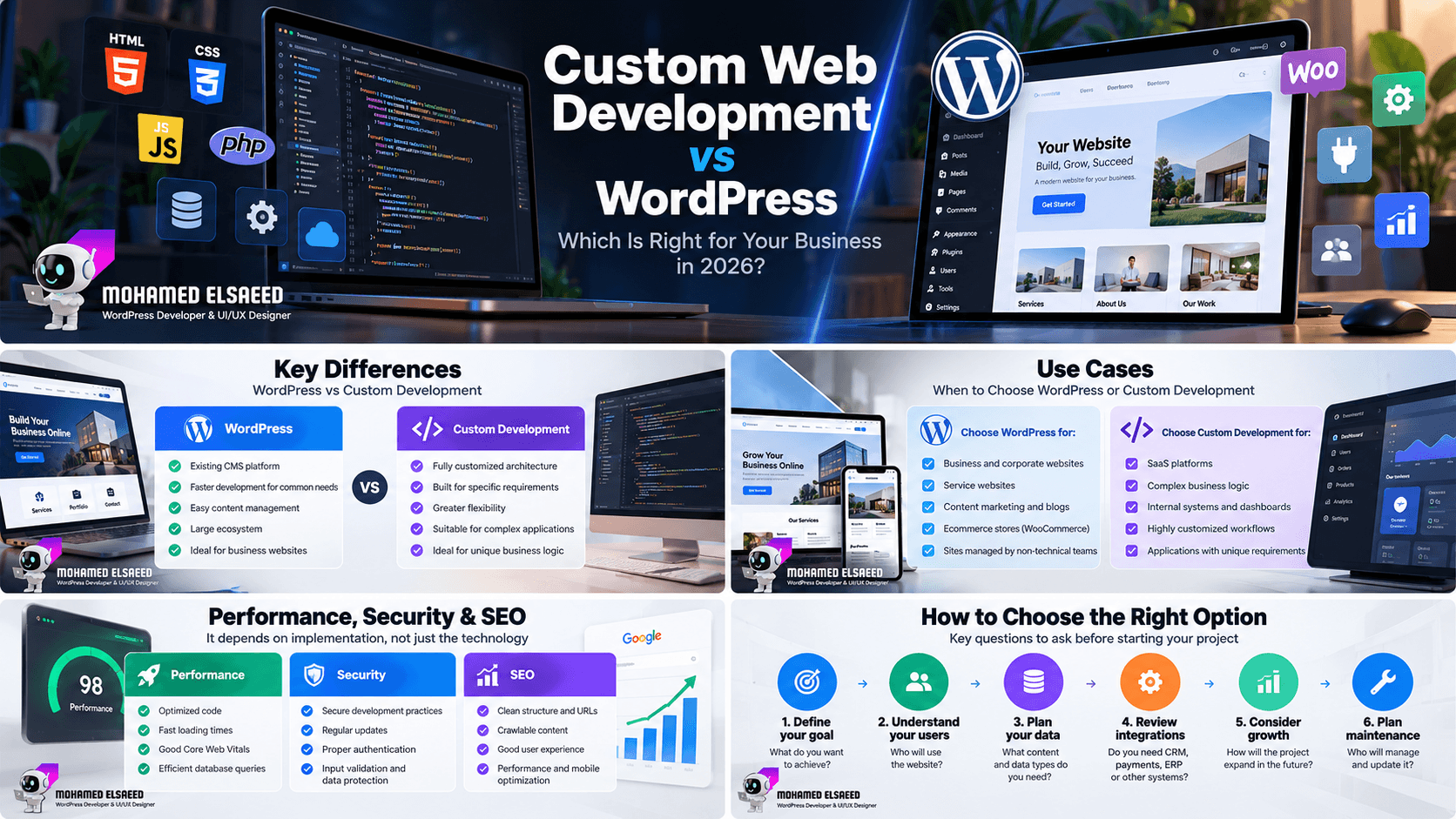

Custom Web Development vs WordPress: 2026 Guide
[…] I cover this process in more depth in my WooCommerce setup guide. […]